File Revisions
SeqDev file revisions preserve named snapshots of sequence files and other workspace files. Use revisions to record milestones, review changes, recover an earlier version, or run an action on a specific version of a file.
Open a file in the Sequence Editor, then click the File Revisions icon in the right sidebar to view and manage its revisions.
Working copies and revisions
The working copy is the current saved file in your workspace. Edits you make in the editor remain unsaved until you click Save. Saving a file updates the working copy and does not create a revision.
A revision is an immutable snapshot of a file that you create explicitly. Later edits to the file do not change the revision. Each file has its own revision history, so creating or restoring a revision affects that file rather than the whole workspace.
What a revision includes
A revision preserves the file's contents and metadata, including the user metadata edited in the Metadata panel. Changing user metadata can therefore cause a file to differ from a revision even when its text is unchanged.
The Read only setting is separate from revision history and is not changed by restoring a revision.
Understanding file status
The editor displays the file's current status:
| Status | Meaning |
|---|---|
| Unsaved Changes | The editor contains changes that have not been saved. |
| Unrevisioned | The file has no revisions yet. |
| Working Copy | The saved file differs from all of its revisions. |
| Matches Revision … | The saved file matches an earlier revision. |
| Matches Revision … (Latest) | The saved file matches its newest revision. |
A saved file can match an older revision, for example after a restore. What we refer to as the "latest" revision is always the most recently created revision, regardless of which one the working copy matches.
Creating a revision
- Open the file and save your changes.
- Open File Revisions in the right sidebar.
- Optionally enter a Description, such as "Updated instrument timing after review."
- For the first revision, accept or change Starting with revision.
- Click Create Revision.
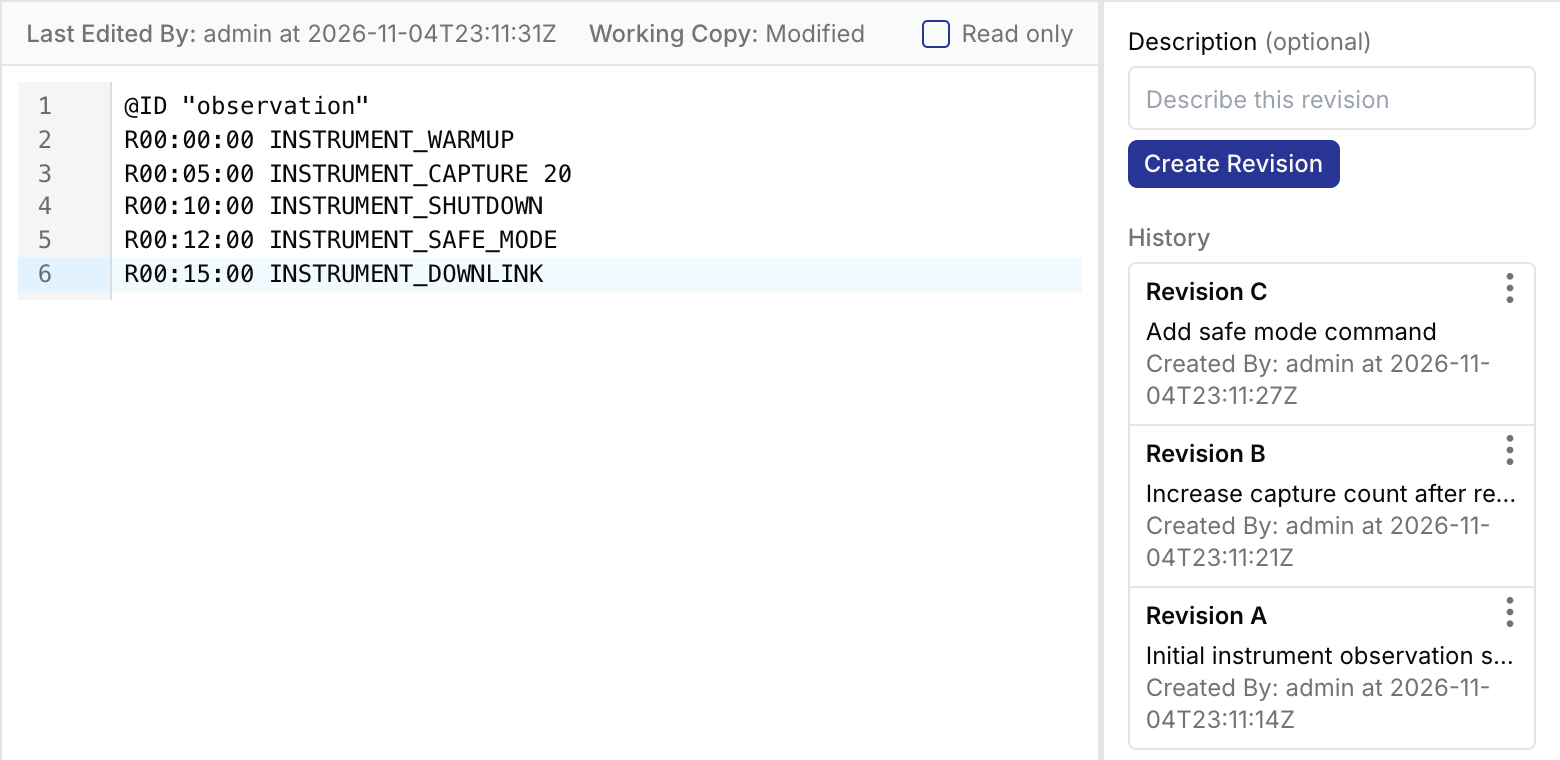
The new revision appears at the top of Revision History. Continue editing and saving normally, then create another revision when you reach the next milestone.
Create Revision is unavailable while you have unsaved changes or if the saved file already matches the latest revision. If the file matches an older revision, you can create a new revision to record returning to that state.
Revision names
Your SeqDev deployment uses either numeric names (1, 2, 3, …) or alphabetic names (A, B, C, …) for revisions.
You can choose the starting name when creating a file's first revision (usually "1" for numeric names or "A" for alphabetic)
and subsequent names will advance automatically.
To change your deployment's naming convention to use alphabetic names (vs. the default numeric), you need to set two
environment variables in your docker-compose file.
- In
plandev_workspace, setWORKSPACE_REVISION_NAMING_CONVENTION=ALPHABETIC - In
plandev_ui, setPUBLIC_WORKSPACE_REVISION_NAMING_CONVENTION=ALPHABETIC
Browsing revision history
Revision History lists revisions from newest to oldest. Each entry shows its name, description, creator, and creation time. Click an entry to preview it, or open its More options menu to download it, restore it, or run a compatible action.
Previewing and comparing revisions
Click a revision in Revision History to compare it with the file currently open in the editor. The side-by-side view highlights changed lines and indicates when file metadata or the file path differs. Unsaved editor changes are included in this preview.
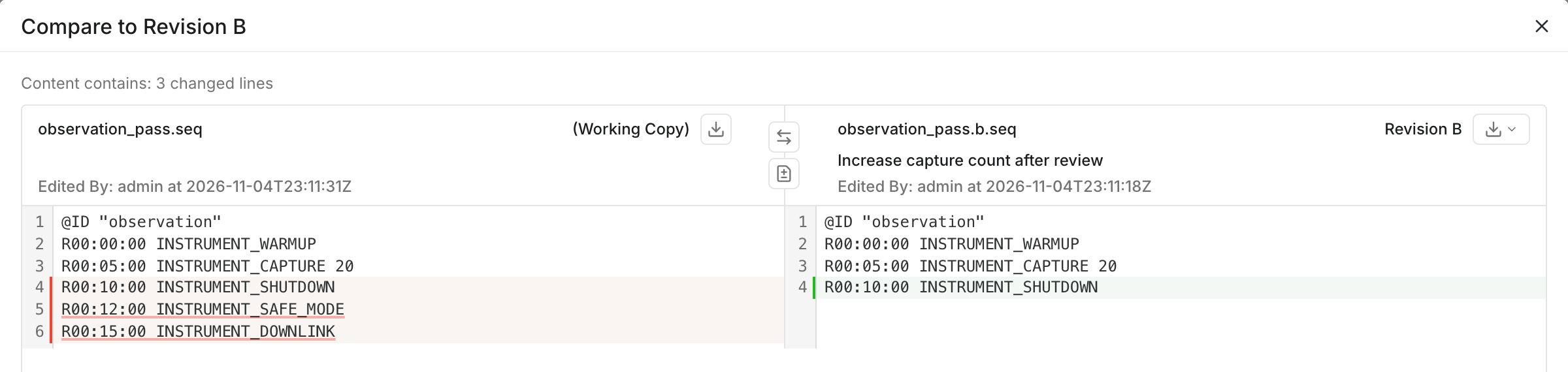
Previewing does not change the file. Close the dialog to continue editing or select another revision to inspect.
Restoring a revision
Restoring replaces the working copy's contents and user metadata with those from the selected revision. Existing revisions remain unchanged, and the file keeps its current name and location.
If you want to preserve your current work, save it and create a revision first. Saving alone does not preserve that state in revision history.
- Save or discard any unsaved editor changes.
- Open the desired revision's More options menu and choose Restore file to revision ….
- Review the comparison and click Restore Revision … to confirm.
The editor will reload the restored file.
Downloading files and revisions
Use the editor's download menu to download the working copy. If you have unsaved changes, SeqDev prompts you to save before downloading.
Download with revision includes the revision name in the filename, such as observation.1.seq. In the editor,
this option is available when there are no unsaved changes and the working copy matches the latest revision.
To download a specific revision, including an older one, use that revision's More options menu in Revision History. Choose a download with the original filename or one that includes the revision name. Both contain the selected revision's saved contents, and neither changes the working copy.
For sequences, source-file downloads and generated seqJSON downloads are separate. Revision History downloads provide the recorded source file. Use the sequence editor's output panel to download generated seqJSON.
Running actions on revisions
For an action that supports revision inputs, open a revision's More options menu and choose Run action on revision …, then select the action. Review its inputs and click Run.
When selecting a file input for a compatible action, the available choices are:
- Working copy: The latest saved file, excluding unsaved editor changes. Some actions do not allow this choice.
- Latest revision: The newest revision available when the action reads the file. This is a moving reference that may differ upon subsequent action runs.
- A specific revision: The named snapshot you selected.
Choose a specific revision when the action must use a particular saved snapshot. The file revision is separate from the version of the action itself. See SeqDev Actions for more about running actions.
Revision history after file operations
Workspace file browser operations including rename, move, copy, and delete affect revision history as follows:
| Operation | Revision history at the destination |
|---|---|
| Rename or move within the same workspace | History follows the file, including when moving its containing folder. |
| Copy to a new path | The copy starts without revisions. |
| Move to a new path in another workspace | The destination starts without revisions. |
| Move within the same workspace and overwrite another file | The destination shows the moved file's history, replacing the overwritten file's history there. |
| Copy over an existing file, or move from another workspace over an existing file | The destination retains its existing history. The source file's revisions are not transferred. |
| Delete a file and recreate the same path | The recreated file starts without revisions. |
Permissions, read-only files, and conflicts
Creating and restoring revisions requires the appropriate workspace permissions. You can preview revisions of a read-only file, but must remove its Read only setting before restoring one. See Workspace permissions for more information.
If another user or an action changes the file while you are working, SeqDev may stop a save or restore and ask you to review the newer contents. Review the changes and resolve the conflict before trying again.