Sequence Editor
SeqDev sequence editor is a web application with various features (auto complete, linting, hinting) to assist users while typing a sequence of commands. SeqDev currently supports AMPCS command, parameter, and channel dictionary schemas for commands, parameters, and telemetry channels. To be able to author or edit a sequence, users must reference a parcel containing a command dictionary available in the PlanDev instance. To upload a command dictionary see instructions here. Users may optionally upload parameter dictionaries, channel dictionaries, and adaptation code on the same view. After these are uploaded a parcel should be specified.
Parcel
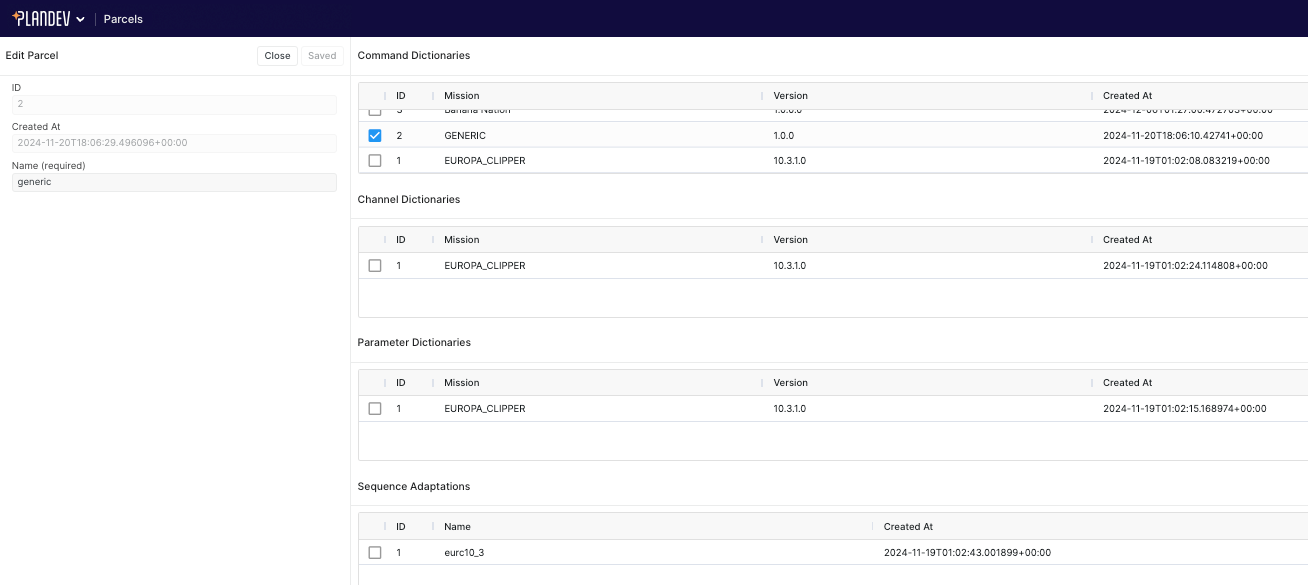
SeqDev groups a command dictionary along with zero or more parameter dictionaries, an optional channel dictionary, and an optional JavaScript adaptation file. If a parcel includes an adaptation, the adaptation may use parameter and channel dictionaries for additional information beyond the command dictionary. If a parcel does not specify an adaptation or specifies an adaptation that does not make use of the additional dictionaries they may have no impact on sequencing.
Navigate to the parcel page to create a parcel or edit an existing parcel.
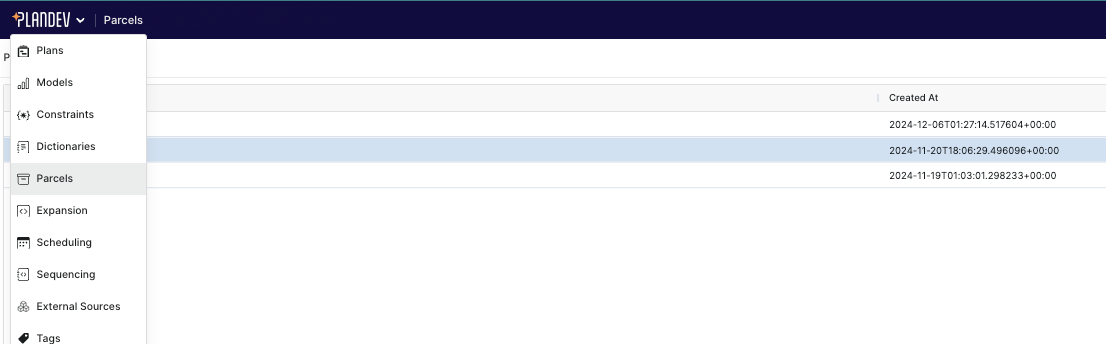
Create a new parcel or edit an existing parcel to change the configuration. Parcels are often named according to Ground Data System or Flight Software releases.
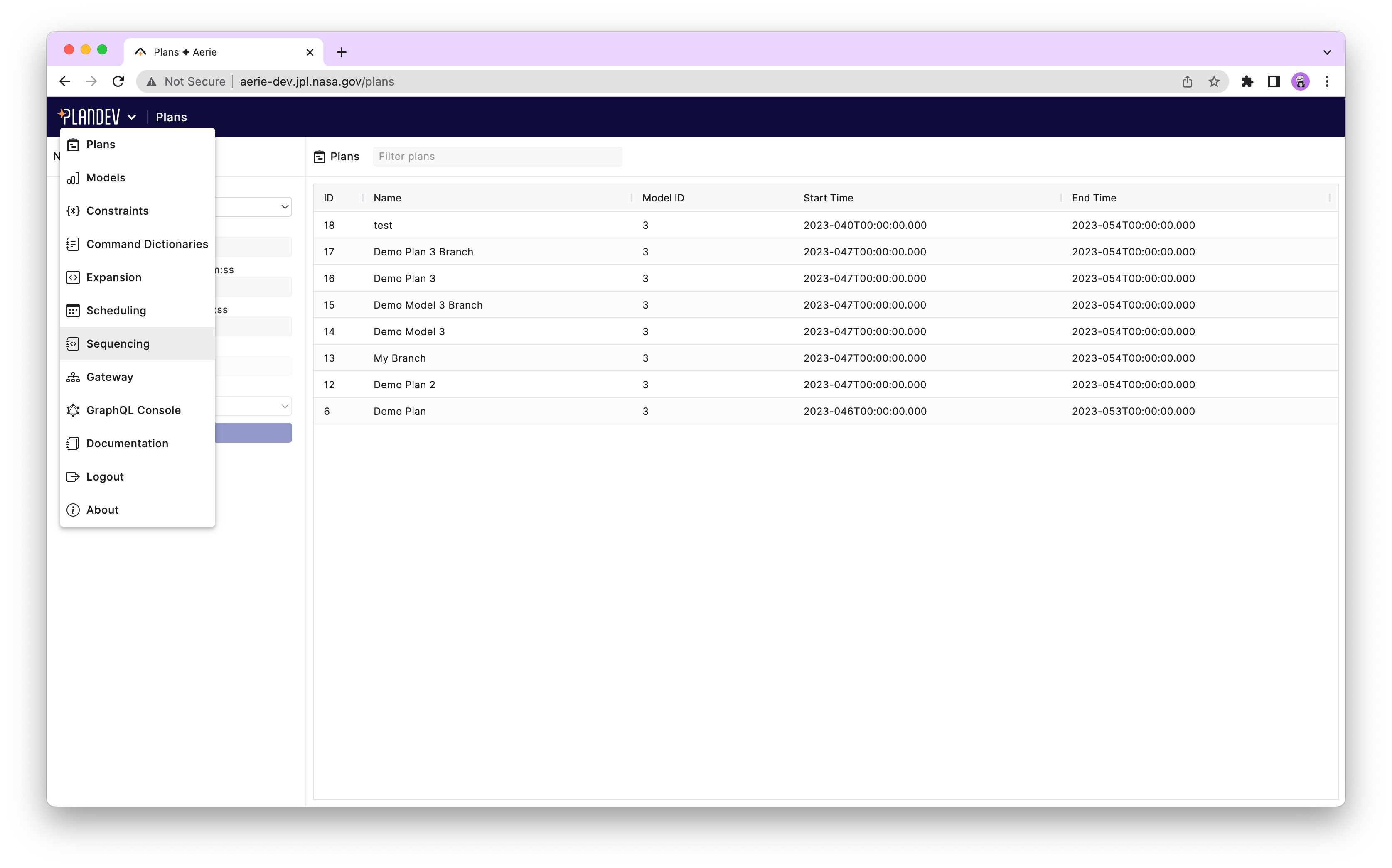
Navigate to the SeqDev sequence editor from the SeqDev drop down menu at the upper left corner.
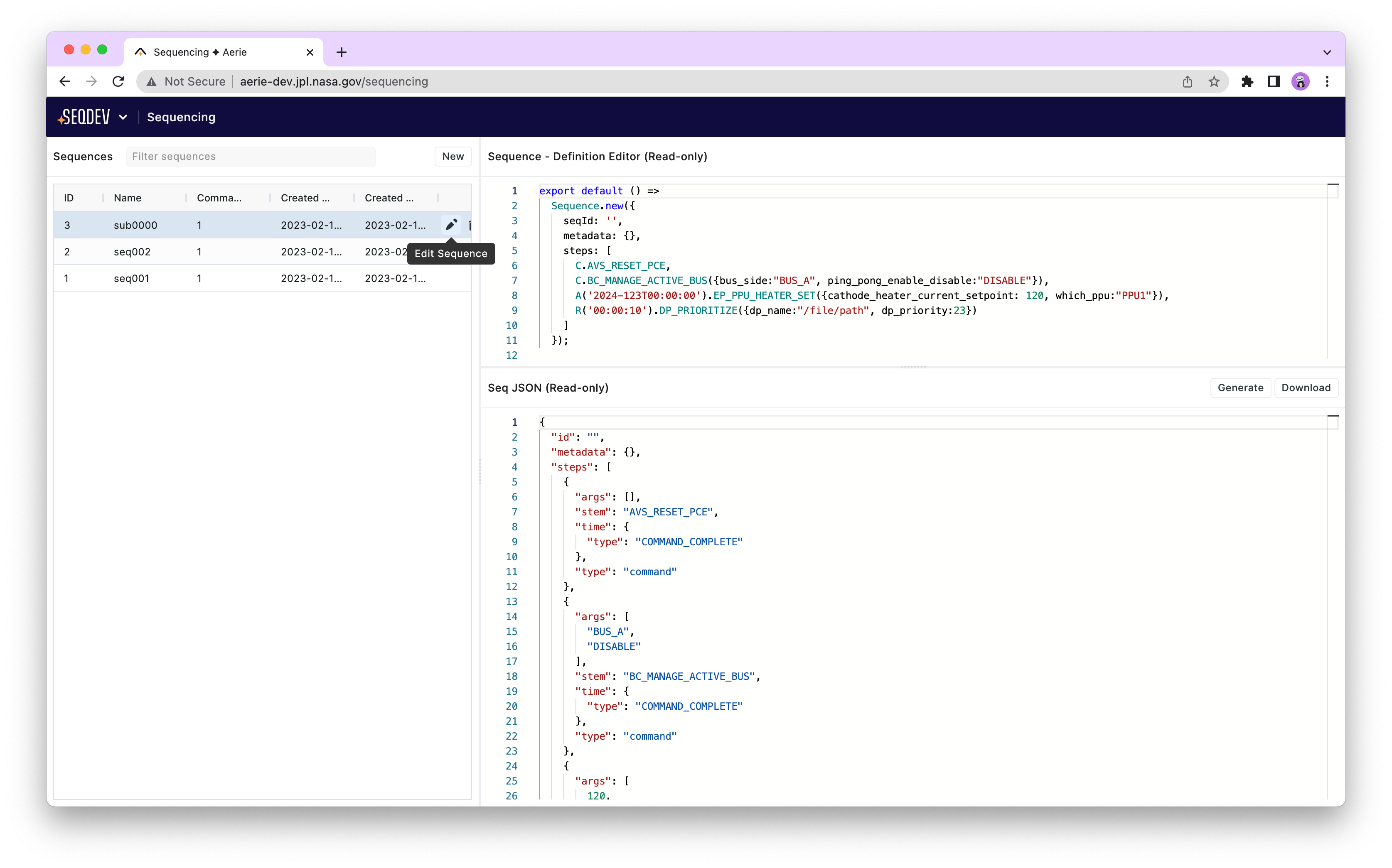
The sequence editor opens a workspace containing sequence files, text files, folders, templates, and other files used by SeqDev tools. The workspace file browser supports folder navigation, search, sorting, file and folder selection, and row context menus for common file operations.
Workspace permissions
SeqDev workspaces are permissioned by user role and workspace ownership. Workspace owners can add collaborators from the workspace settings. Collaborators can edit workspace files when their active role has the required workspace permissions. Users who can read a workspace but not write to it can still open and view files, but cannot create, edit, move, or delete workspace contents.
For custom deployment roles, see the advanced permissions documentation.
Editing files
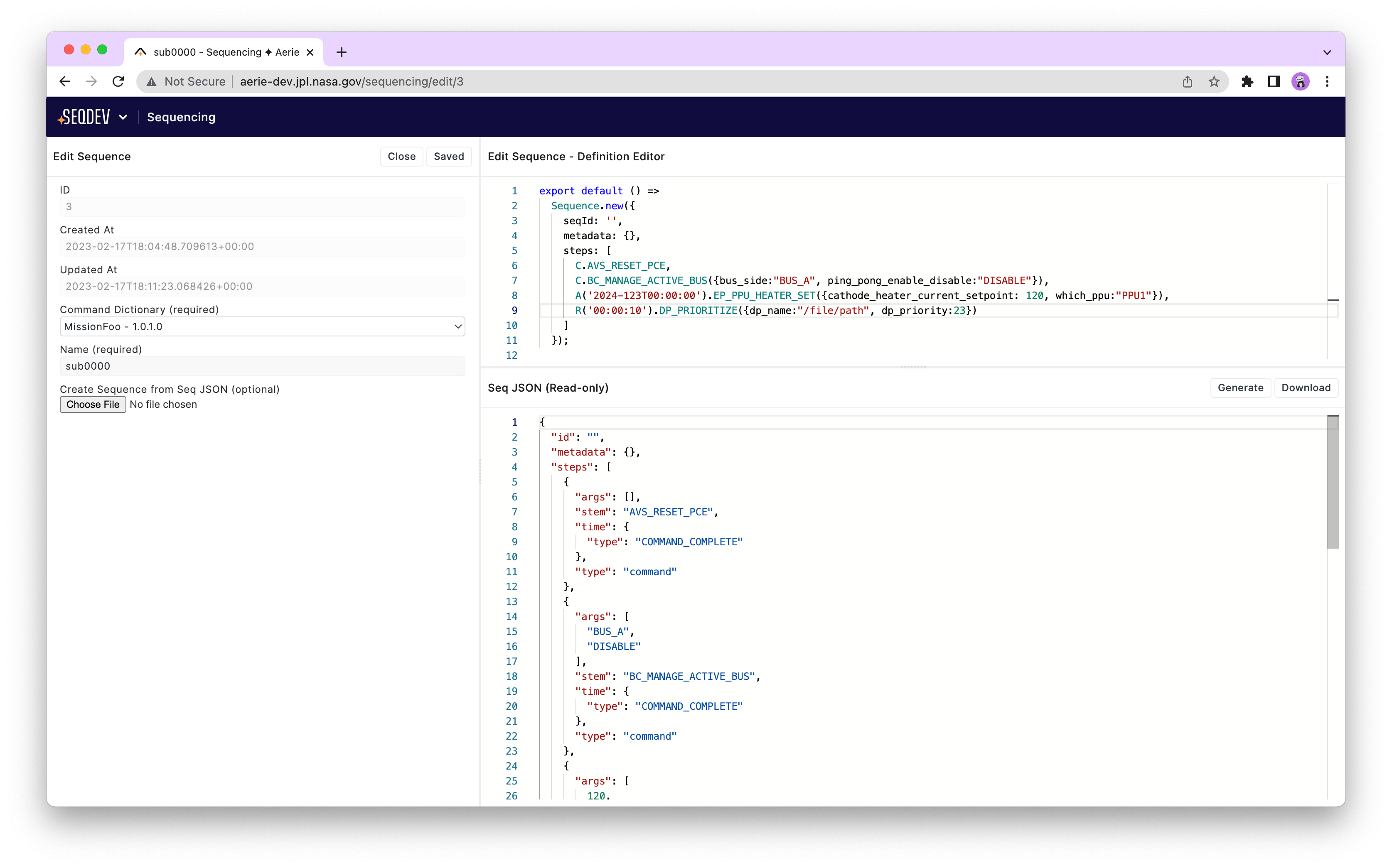
In the sequence editing page users need to select a command dictionary before they can edit a sequence. Editing sequence files means adding any of the step types defined in the seqJSON format to the steps section of the sequence. In addition seqJSON allows arbitrary JSON objects to be added as metadata. Refer to your mission guidelines regarding metadata format expected by downstream processes and tools.
Workspace file operations
Workspace files and folders can be selected from the file browser and managed through the row context menu. Single-item operations include opening files, copying paths, downloading files, and moving, copying, or deleting files and folders.
The workspace table supports multi-select with shift-click or ctrl-click. Selected files can be used to run compatible SeqDev Actions, or moved, copied, deleted, and downloaded together. Multi-file downloads are packaged as a zip file, preserving folder structure where needed.
When moving or copying files, SeqDev checks for conflicting destination files and lets users choose whether to overwrite or skip conflicts.
Workspace error console
The workspace error console gathers errors and logs from the current workspace session. It includes action runs, adaptation loading and console errors, editor lint errors, and general logs. Lint errors include clickable file, line, and column references when available, and action entries can link to the action run detail page.
Workspace file metadata
SeqDev maintains metadata for workspace files. Metadata files are managed by the workspace service, stored as hidden
.meta.seqdev files, and not shown in normal workspace file listings. In most cases, users interact with this metadata
through the read-only checkbox or the Metadata right panel.
Managed metadata
SeqDev automatically tracks who created and last edited each workspace file, and when those changes occurred. These fields are service-controlled and cannot be directly edited through the metadata API. They are updated for file changes made through the SeqDev UI or workspace APIs.
If files are changed directly on the filesystem, SeqDev cannot update the metadata timestamps or user fields.
Read-only files
File metadata may include readOnly: true. When set, SeqDev prevents accidental edits, moves, renames, and deletes of
that file until the flag is removed. Files can still be read, copied, and have their metadata updated. Copies of
read-only files are created as editable files.
The read-only flag can be changed with the Read only checkbox in the editor, or through the metadata API.
User metadata
The user field stores arbitrary JSON-shaped metadata for a file. This is intended for mission-specific annotations or
tool-specific state that should travel with the workspace file. Users can edit it in the Metadata right panel, or
through the metadata API.
user metadata must be a JSON object. Keys inside the user object may be nested, but key names cannot contain ..
Metadata in actions
SeqDev Actions can read and update workspace file metadata through the plandev-actions API:
const metadata = await actionsAPI.getFileMetadata('foo.seqn');
await actionsAPI.setFileMetadata('foo.seqn', { user: { status: 'checked' } });
await actionsAPI.unsetFileMetadata('foo.seqn', ['user.status']);
See the ActionsAPI implementation for the full
Actions API surface.
Metadata API
Most users do not need to use the metadata REST API directly. It is primarily useful for integrations, automation, or
tools that manage workspace files outside the SeqDev UI. See the WorkspaceBindings implementation for full endpoint behavior.
All metadata API paths refer to the main file path, not the hidden metadata file path:
GET /metadata/<workspaceId>/<filePath>
POST /metadata/<workspaceId>/<filePath>
POST /metadata/unset/<workspaceId>/<filePath>
DELETE /metadata/<workspaceId>/<filePath>
The set endpoint accepts writable metadata fields:
{
  "readOnly": true,
  "user": {
    "status": "draft"
  }
}
The unset endpoint removes metadata keys. Use dot paths for nested user fields:
["readOnly", "user.status"]
The set endpoint supports mergeBehavior=deep, mergeBehavior=shallow, or mergeBehavior=overwrite for updates to
the user object. If omitted, the default is shallow.
Import / export seqJSON
SeqDev editor allows authoring and viewing sequences in a user friendly format which is more compact, easier to read and write compared to the seqJSON. However seqJSON is the exchange format that should be used to exchange sequences with upstream and downstream tools. While creating a new sequence, users can import a seqJSON using the in (Choose File) button available at the new sequence the left panel. After authoring a sequence, it can be downloaded to the your local machine using the (Download) button at the upper right corner of the seqJSON view panel at the bottom.
Typing commands
As explained earlier authoring a sequence simply means concatenating commands in the steps array. Example below illustrates how a simple sequence with a few commands and various time tags looks like.
R001T00:00:01 GROW_BANANA 1 60
C PICK_BANANA

C AVS_RESET_ECE
C BC_MANAGE_ACTIVE_BUS "BUS_A" "DISABLE"
A2024-123T00:00:00 PACKAGE_BANANA 0 ["lot_0" 1]
R00:00:10 THROW_BANANA 10
- Each command step must start with a time tag. Time tags supported in seqJSON are command complete (
C), absolute (A2020-001T00:00:00), relative (R00:00:00), and epoch relative (E00:00:00). To understand how these time tags get executed on board, refer to your missions Sequencing FDD. - To view list of commands, type a time tag and a space.
- To filter commands, start typing the first few letters of the command stem.
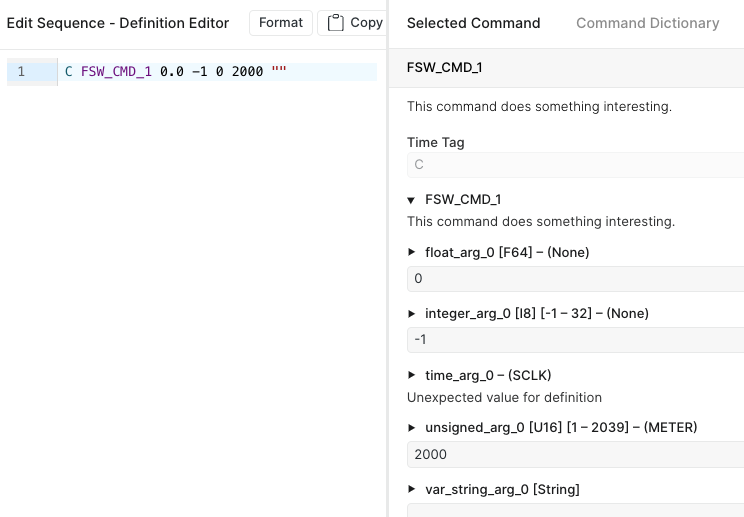
- After selecting the command the parameters will be inside of the right "Selected Command" panel.
- If command has arguments they will be delineated with a space.
- Editor can autocomplete argument names with the
control + Spaceshortcut. - For the enumerated args,
control + Spacecan be used to select one of the defined enum values. - Errors will be linted with a red squiggly underline. Hovering over the error should provide explanation for the error as shown below.
- Generate seqJSON will fail if you have errors in the sequence.
Form editor
SeqDev offers a form editor to edit individual arguments. Different argument types -- strings, enumerations, variables and numbers -- each have their own appropriate control
Keyboard shortcuts
When the cursor is within the sequence editor the following keyboard commands are available
| Windows/Linux | Mac | Command | Description |
|---|---|---|---|
| Alt+← | Ctrl+← | cursorSyntaxLeft | Move the cursor over the next syntactic element to the left. |
| Shift+Alt+← | Shift+Ctrl+← | selectSyntaxLeft | Move the selection head over the next syntactic element to the left. |
| Alt+→ | Ctrl+→ | cursorSyntaxRight | Move the cursor over the next syntactic element to the right. |
| Shift+Alt+→ | Shift+Alt+→ | selectSyntaxRight | Move the selection head over the next syntactic element to the right. |
| Alt+↑ | Alt+↑ | moveLineUp | Move the selected lines up one line. |
| Alt+↓ | Alt+↓ | moveLineDown | Move the selected lines down one line. |
| Shift+Alt+↑ | Shift+Alt+↑ | copyLineUp | Create a copy of the selected lines. Keep the selection in the top copy. |
| Shift+Alt+↓ | Shift+Alt+↓ | copyLineDown | Create a copy of the selected lines. Keep the selection in the bottom copy. |
| Alt+L | Ctrl+L | selectLine | Expand the selection to cover entire lines. |
| Ctrl+[ | Cmd+[ | indentLess | Remove a unit of indentation from all selected lines. |
| Ctrl+] | Cmd+] | indentMore | Add a unit of indentation to all selected lines. |
| Shift+Ctrl+k | Shift+Cmd+k | deleteLine | Delete selected lines. |
| Ctrl+/ | Cmd+/ | toggleComment | Comment or uncomment the current selection. Will use line comments if available, otherwise falling back to block comments. |
| Ctrl+S | Cmd+S | saveDocument | Save current editor contents |
| Ctrl+Space | Cmd+Space | suggestCompletions | Show autocomplete options |
| Ctrl+Shift+m | Cmd+Shift+m | openLintPanel | Show panel at bottom of editor with errors and warnings |
| F8 | F8 | nextDiagnostic | Select / Scroll to next error or warning |