Advanced - Password Authentication
PlanDev currently only supports password authentication for applications internal to JPL via CAM. This document describes how to enable CAM username + password authentication.
Note that Hasura authorization is enabled by default (even without CAM authentication enabled), so you need either an admin token or JWT provided by the gateway to access it.
To learn how to programmatically authenticate with PlanDev to get a token, see the API docs on the topic.
Service Environment Variables
The default PlanDev docker-compose.yml file requires certain environment variables to be set to enable authentication. This section outlines the variable definitions and the services that require them for authentication.
AUTH_GROUP_ROLE_MAPPINGS
- Description: Optional JSON object that maps LDAP groups to allowed PlanDev roles.
- Service: aerie_gateway
- Accepted values: Stringified JSON. Auth provider groups are keys, values are list of allowed PlanDev roles
- Example:
{
  "team_leads": [ "aerie_admin" ],
  "power_users": [ "user", "viewer" ],
  "business_users": [ "viewer" ]
}
- Default:
{} - See: SSO auth docs for more information.
AUTH_TYPE
- Description: Authentication method (currently only supports CAM or none)
- Service: aerie_gateway
- Accepted values:
camornone - Default:
none
AUTH_URL
- Description: URL of CAM server
- Service: aerie_gateway
- Accepted values: Any valid CAM API URL
- Default:
https://atb-ocio-12b.jpl.nasa.gov:8443/
HASURA_GRAPHQL_JWT_SECRET
- Description: A JSON string containing a type property set equal to the method of encryption (HS256) and the JWK (key)
- Services: hasura, aerie_gateway
- Accepted values:
{"type": "HS256", "key": "SET_SECRET_PRIVATE_KEY_HERE"} - Default:
null - See: https://hasura.io/docs/latest/deployment/graphql-engine-flags/reference/#jwt-secret
HASURA_GRAPHQL_ADMIN_SECRET
- Description: Secret password that gives admin access to query Hasura
- Services: hasura, aerie_scheduler, aerie_scheduler_workers, aerie_sequencing
- Accepted values: Any password string
- Default:
null - See: https://hasura.io/docs/latest/deployment/graphql-engine-flags/reference/#admin-secret-key
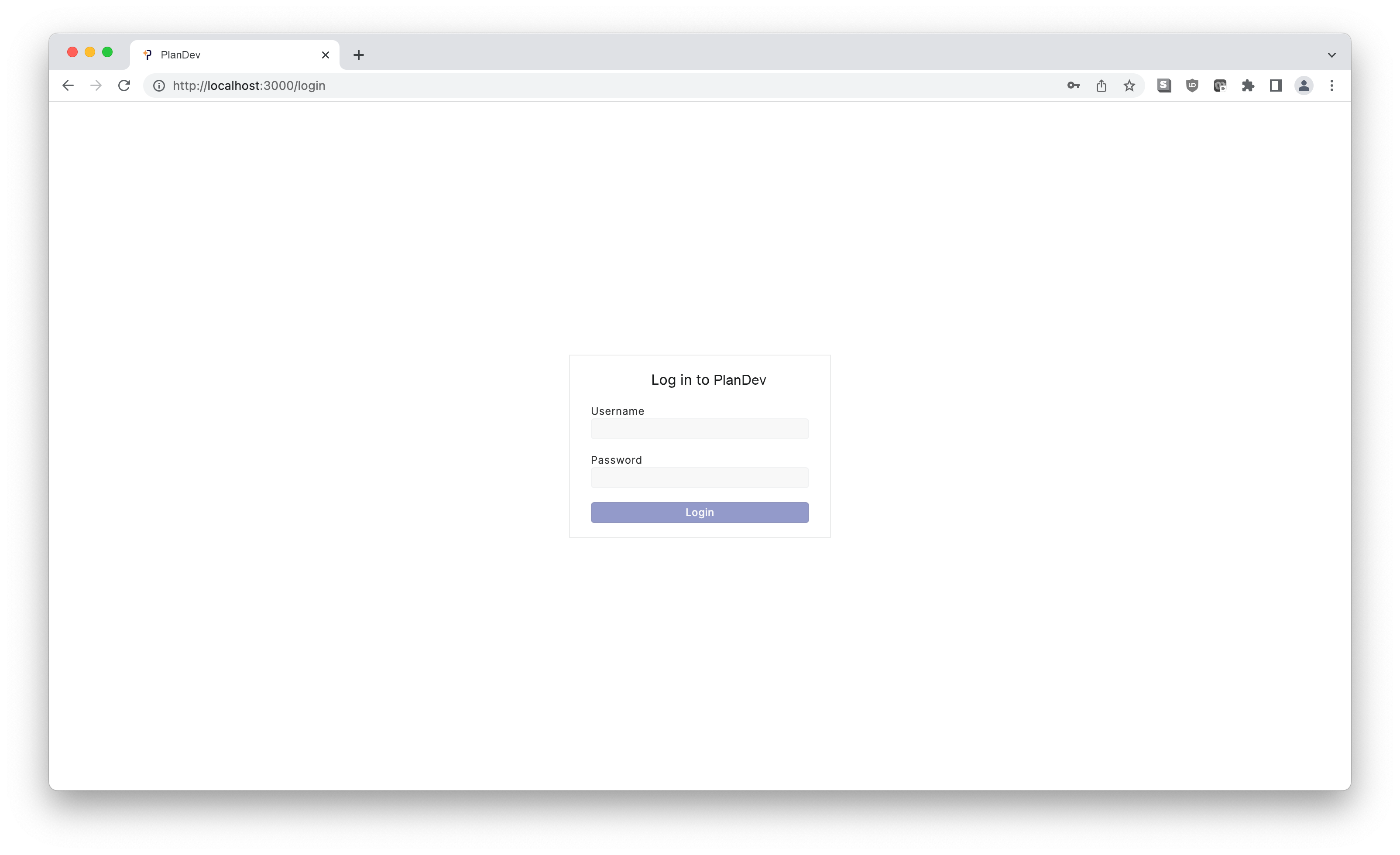
PlanDev UI Login Page
With CAM authentication enabled you can log in to the PlanDev UI with your JPL username and password.